

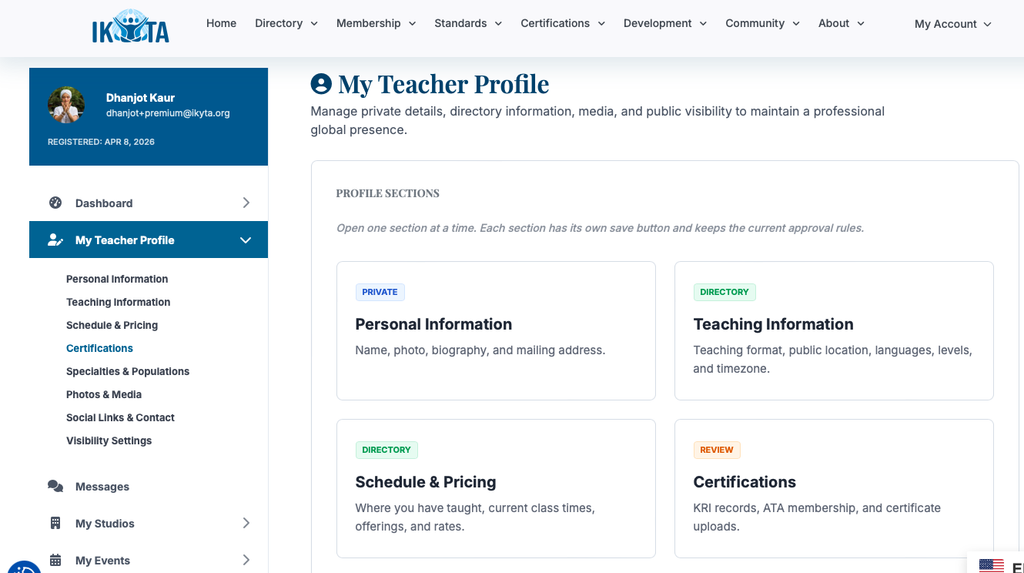
You can edit your IKYTA profile in a few minutes from the My Teacher Profile page. Log in, open the section you want to change, update the fields and click save. Each of the eight sections saves on its own, and some public changes wait for administrator review before they appear. Your profile is the front door students and colleagues walk through, so it pays to keep it accurate. This guide and a two-minute video walk you through every section, from your photo and biography to your credentials and privacy settings, so you can finish quickly and with confidence.
Watch the Edit Your IKYTA Profile Tutorial
The video below takes about two minutes. It shows every section of the editor and ends with what visitors see on your public profile. Watch it once, then use this guide as a checklist while you update your own page.
In the video, you will see how to:
- Open the eight profile sections and save each one separately
- Complete your personal and teaching information
- Add credentials, photos and contact details
- Choose what visitors can and cannot see
- Preview your public profile
Update Your Personal Information
This section is private, so it’s the best place to start. It holds the details behind your name and your story.
Photo, spiritual name and display name
Upload a photo framed on your face, and use the crop tool so it sits well in the square. Add your spiritual name if you use one, or leave it blank if you don’t. Then choose how your name appears publicly.
- Profile photo: a clear, face-framed image
- Spiritual name: optional
- Display name: the name the public sees
Biography and mailing address
Write a short biography in your own voice. Mention how long you have taught, what you love sharing and the languages you teach in. A biography change may wait for administrator review, as the tutorial shows with its “Changes pending review” message. Your mailing address comes from your account, so edit it in Account Settings rather than here.
Help Students Find You in the Directory
These sections feed the public directory, so accuracy here helps the right students reach you.
Teaching format, location and languages
Tick every format you offer: online, in person or hybrid. Add your public teaching address, which drives the directory map. You can copy your mailing address if the two match. Then select the languages you teach in and the levels you serve, from beginners to experienced practitioners.
Required Fields to Appear in the Directory
To show up on the website, your profile needs two things: at least one teaching language and a teaching location. Without them, students cannot find you on the Ikyta teacher directory, even if the rest of your profile is complete.
Check both fields in the Teaching Information section before you move on. If you teach online, add the location you want students to associate with your classes
Schedule, pricing and places you’ve taught
Keep your history of places you’ve taught separate from your current weekly schedule. Add a block for each location, then set the day, start and end times and class type. Offerings and rates live here too. Update this section whenever your classes change.
Specialties and populations
Choose the groups and focus areas that describe your teaching, such as meditation, mental health or women. If your specialty isn’t on the list, suggest it in the text field. IKYTA reviews suggestions before adding a new directory category.
Show Your Credentials and Your Teaching
ATA membership and KRI level
Check “I am an ATA member” if it applies and choose your ATA role. Then select your KRI level and upload your certificate details. An administrator reviews these records, and once approved they appear as badges on your profile.
Photos and presentation video
Add up to 10 gallery photos, then drag them to reorder. The first one becomes your featured image. You can also paste a link to a short presentation video. Gallery changes need approval before they go live.
- Choose clear, well-lit photos of you teaching
- Put your strongest image first
- Link a short video so students can meet you
Make It Easy to Reach You
Phone, WhatsApp and web links
Add your phone number with the country code. If you want, show a WhatsApp button that uses the same number. Add web links to your website or social profiles so visitors can learn more about your teaching.
Visibility settings
You decide what the public sees. Switch your public profile on or off, then choose which items appear.
- Profile photo and gallery
- Social and web links
- Contact form (your email stays hidden)
- Phone number
Your Membership Shapes Your IKYTA Profile
Not every field appears on every directory profile. The information visitors see depends on your membership type, and some membership levels unlock an enhanced profile to showcase more of your teaching. If a section looks different from the tutorial, your membership type is the first thing to check.
Want to see what each level includes? Explore the IKYTA Membership Options and compare the membership types before you decide. You can also upgrade later, and your profile will show the added fields once your new membership is active.
What Happens When You Save
Saving is quick, but it helps to know what to expect. Each section saves on its own, so you never lose work in another section.
- Click the save button at the bottom of the section.
- If a change needs review, a “Changes pending review” box lists the affected fields.
- Choose “Continue saving” to submit, or “Cancel” to keep editing.
An administrator then reviews the pending fields before they appear publicly.
See Your Profile as Visitors Do
Your public profile shows your name, member status and KRI level at the top. Below, visitors see your focus areas, teaching format, offerings and levels, then your biography and the places you teach. A contact card shows your languages, phone and links. A message form lets students write to you without seeing your email.
Frequently Asked Questions
How long does it take to edit my IKYTA profile?
Most teachers finish in a few minutes. Each of the eight sections saves separately, so you can update one and come back later.
Do my changes appear immediately?
Some do. Others, such as biography, credentials and gallery photos, wait for administrator review. [[VERIFY]]
Can I hide my profile from the public directory?
Yes. Turn off the public profile in Visibility Settings, or choose which items visitors see.
Where do I change my mailing address?
In Account Settings. The profile editor reads it from your account.
Keep Your Profile Fresh
Open My Teacher Profile, update what has changed and save. A current profile helps students find you and trust you. If you get stuck, we’re here to help.
Need a hand? [email protected]
Most teachers finish in a few minutes. Each of the eight sections saves separately, so you can update one and come back later.
Some do. Others, such as biography, credentials and gallery photos, wait for administrator review
Yes. Turn off the public profile in Visibility Settings, or choose which items visitors see.
In Account Settings. The profile editor reads it from your account.
You need at least one teaching language and a teaching location. Without them, your profile will not appear on the website.
The fields shown on a directory profile depend on your membership type. Compare the membership types to see what each level includes.
